A couple of well-chosen search terms entered to Google will return a plethora of images on any imaginable topic. And therein lies the problem; it’s so easy to find the images that we want that we tend to forget that every image published on the web is copyrighted. In order to legally use that image outside of the classroom, we must have permission of the copyright owner.
As a teacher of teachers, I feel doubly responsible about modeling the right behavior for my post-secondary students. I need to make sure that my teacher candidates know the copyright ropes so that they can properly instruct their students when they become teachers. That’s why I love Flickr Storm.
Flickr Storm is a web-based service that allows you to search Flickr for photos by license. The key is to use the Advanced menu for all of your searching.

When you click the Advanced menu link, you are presented with a drop-down menu with a choice of license types. The majority of photos posted to Flickr are licensed under the “Attribution” agreement, meaning that you can use the photo in a commercial or non-commercial project as long as you give credit to the copyright owner.

There are many other nice features of Flickr Storm. The attribution URL is clearly shown so that you can copy/paste the attribution information into your project. You can create an online library (a “tray” in Storm lingo) of found images on a topic with a URL that you can share with others if you want.

Using Flickr Storm for searches helps me call attention to copyright issues with my students, provides them with a rich source of usable images for their projects, and gives credit to the copyright owners for their work. It’s an essential element of working with digital images.
]]>- Upload of images is frustratingly slow and often hangs in progress, requiring a browser restart and loss of work;
- Dragging images from the media folder to a project sometimes simply doesn’t work at all, again requiring a restart;
- Text boxes cannot be resized to accommodate more (or less) text than will fit in a given box;
- Images are fixed and cannot be moved around on a page to facilitate creative layouts;
- Viewing storybooks online seems inordinately slow, even on a fast campus-wide network.
For these reasons, most of my students reluctantly conclude that Panraven is not a reliable classroom tool, particularly for younger elementary students. The final product, while very compelling, is not worth the potential frustration of using the tool in a K-12 setting.
That’s why I was thrilled to be directed by a colleague to Tabblo (pronounce it “tableau”). Like Panraven, Tabblo creates online storybooks. (It also creates comic books and posters up to 24″ x 36″, but that’s another blog entry.) Unlike Panraven, however, uploading images is very fast. In fact, in my side by side tests on the same computer using the same network, Tabblo uploaded images many times faster than Panraven. Tabblo never hesitated to upload properly, and dragging photos into a story within Tabblo worked perfectly each time I tried it.
Viewing storybooks online is also much faster than with Panraven. Turning a page in Tabblo produces a pleasing”page curl” effect (which works forwards or backwards at both the top and bottom corners of a page) and there is no noticeable delay in loading the next page as there is with Panraven. On the other hand, Tabblo stories appear much smaller on a web page than do Panraven stories (which give you the option of enlarging the display if you want), making captions or small text difficult to read. If there is a way to enlarge Tabblo books, I have not found it yet.
Creating layouts in Tabblo is a breeze, and, while you can choose from a variety of preset layouts, the author is afforded complete control over the placement of images and text boxes on any page. Pictures can be moved from one place to another on a page or dragged off the page and stored in a virtual lightbox for use later. Text boxes can be any size and can be resized easily. It’s simple to insert new pages or delete unwanted pages. And–these actions happen quickly, with no discernible delay in execution.
Tabblo doesn’t win in every category, however. Panraven allows you to embed your stories into a blog, wiki, or other web page. I like this feature very much. Tabblo generates code that “simulates” embedding (that is, it places an image of the storybook cover in your blog), but that image is in reality just a link to the Tabblo web site. It would be wonderful if Tabblo allowed true embedding of projects into web pages.
Below is a test story that I created with Tabblo. Notice that the captions are difficult to read. I cannot find a way to increase the text size in the captions.

Even so, it looks like I am going to have to change my fall semester syllabus. We’re moving to Tabblo as an alternative to Panraven.
]]>That’s why I find the idea of embedding media so powerful. Most online content services provide ways to embed media into a web page of just about any variety. All you need is a bit of site-generated code and authoring access to a web page. Blogs and wikis are great places to publish embedded media. Even stodgy old Blackboard will allow embedding and display of most media types. Imagine–you no longer have to upload a PowerPoint slide show to Blackboard and have your students download it for viewing. You can upload it Google Docs and embed it on Blackboard as a content item. Any changes you make to your slide show through Google Docs are immediately available to your students (it may require refreshing the Blackboard page) and it doesn’t take up any of your limited Blackboard storage space.
Embedding media is simply a matter of copy a few lines of code from a content service and pasting it into your blog, wiki, web page, Blackboard course site, or any other web page to which you have authoring privileges. The code is automatically generated by the content service site.
Here are a few of the content services that provide automatically generated code that can be copied and pasted into your sites:
- Flickr (photos)
- VoiceThread (voice and video annotated stories)
- Panraven (online storybooks)
- Google Docs (MS Office compatible word processing, presentation, and spreadsheet files; requires a Google account)
- Flickr Slidr (generates code for embedding Flick slide shows
- YouTube, and virtually every other video sharing site (videos)
There are some potential tradeoffs when using embedded media. For example, PowerPoint slide shows uploaded to Google Docs cannot have sound or animation. Careful authoring with these limitations in mind, however, usually results in useful and effective documents.
Below is an example of an embedded VoiceThread project, which I’ve chosen to present in a small size for faster access. Because I have allowed public comment on this project, video or voice annotations added to my original presentation on VoiceThread will automatically be reflected here, and vice versa.
]]> That’s why resources such as Smithsonian Images are so useful for educators. Images are of very high quality, can be easily verified as authentic, and include a copyright license that allows for fair use for personal, school, or non-commercial use as long as proper credit is given when images are used. (Speaking of which, the image at left is a barite specimen photographed by Laurie Minor-Penland in 1995.)
As you might expect from the Smithsonian Institution, images are tracked by categories that are very useful to educators. The default categories are:
– Air and Space
– American History
– Animals
– Fireworks
– Gems and Minerals
– History of Technology
– Marine Life
– Military History
– Nature
– The Presidency
– Transportation
– Washington, DC
Other categories are available, and there is an excellent search engine on the site.
]]>Podcasts come in two “flavors.” Audio podcasts are typically MP3 files with vocal and/or music content, although there are other file formats available. (My favorite audio podcasts are the podcast versions of NPR’s Wait, Wait, Don’t Tell Me, a show that I dearly love but rarely hear live due to its broadcast time. All episodes live on my iPod and get played regularly.) “Enhanced” podcasts include images or video and may have addressable chapters available to the listener.
There are many tools available for educators to use to create their own podcasts. Mac users have the elegant GarageBand, which easily integrates voice, music, and video to create podcasts. (iLife ’08, the current version, does an exemplary job of creating podcasts and is well worth the upgrade.) Other tools for Windows and Macs may be found here.
 To fully appreciate podcasts, start by subscribing to a few of them. Apple’s iTunes Store is a great place to start. Select Podcasts from the store menu, select a category, and subscribe. (NPR’s content can be found under Featured providers.) Most are free. Seek out podcasts on topics that interest you, and start to imagine what kind of content you or your students could provide to others. You’ll be podcasting in no time…
It strikes me a strange, then, that Macintosh–the platform that included the wonderful MacPaint and MacDraw applications from its first incarnation–does not ship with simple drawing and painting software. This omission is particularly problematic in K-12 education. Kids love to draw, and their illustrations often form essential elements in their stories. Schools with limited budgets must often overlook drawing and painting applications in order to acquire word processing and spreadsheet software. What’s a third grader to do?
Fortunately, there are some solutions that fill the gap nicely. In this post, I’m going to concentrate on freeware applications that are usable by even elementary students. (I’m saving higher-end programs such as GIMP–a full-featured PhotoShop alternative–that are too complex for younger students for a future post.)
Seashore
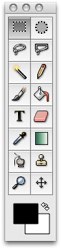 Seashore is a free painting program with a surprisingly strong array of tools. All the expected tools are there–paint brush (with lots of options), eraser, pencil, fill bucket, magic wand (for selecting colors) and marquee tools for selecting areas of your painting. There’s also a smudge tool for blending colors and a PhotoShop-like clone (rubber stamp) tool. You can control the transparency of your paintings and even paint with a large variety of included textures. For more advanced artists, you can add layers and manage red, green, and blue color channels.
Tools are easy to select and understand even for younger students. It’s a fine all-around painting program that should be on every K-12 Mac.
Image Tricks
 If your graphics needs run more toward the photo processing side, consider Image Tricks from BeLight Software. Image Tricks uses the Mac’s built-in Quartz imaging tools to create an easy and fun to use photo editing environment. You can open or paste in photos or scanned images from any source (a handy link to iPhoto is available) and alter them to your heart’s content. Apply filters, change colors, rotate and distort images, crop and resize photos, and save in jpg, png, tif, gif, and even pdf formats. The Masks feature lets you apply borders and frames to your images. All filters can be easily tweaked to create beautiful and unusual effects. The tools are easily accessible and encourage experimentation and exploration.
Mac users already have powerful photo editing tools in iPhoto and Preview. But Image Tricks has some new and exciting capabilities that expand the possibilities for working with photos. And–it’s tons of fun.
]]>LibriVox
LibriVox is the mother-of-all free audiobook resources on the ‘Net. Nearly 1000 titles are available, all searchable by title, author, category, and genre. Most of the classics are here as well as many modern and contemporary essays. Files are available in mp3 or ogg vorbis formats. Where available, links are provided to text versions (e.g., from Project Gutenberg) of the material. All recorded books are in the public domain in the US, and all are read by human readers. There is an RSS feed available to alert you when new materials are added, and you can even volunteer to be a reader.
Project Gutenberg Audio Books
Known mostly for its vast array of public domain print books, Project Gutenberg also offers many of its titles as audiobooks. Entries are read by human readers (or by synthesized voices; see below) and are available in many different audio formats, including mp3, m4b (iTunes/iPod), and ogg vorbis. Project Gutenberg no longer adds synthesized books to its library, preferring instead to use human readers, but they are migrating to an “on demand” service for delivering synthesized text to visually-impaired individuals. My favorite feature of PG is the full-text search capabilities, allowing the reader to search for occurrences of words or phrases within the texts themselves. Of course, PG also supports searching by author, title, etc.
Free Classic Audiobooks
This site offers a limited range of titles (around 60), but the offerings are compelling–from Huckleberry Finn to Alice in Wonderland to Shakespeare’s Sonnets to Notes from the Underground to the 911 Commission Report. Roughly half are read by humans; the remaining titles using an “advanced” synthesized speech that is quite understandable. All titles are available in mp3 format and in m4b format for iPod or iTunes. Books are segmented into chapters for easier downloading or downloading of specific chapters (great for review purposes). I love throwing these on my iPod for long car rides. They also make great review items for high school British and American literature classes.
LearnOutLoud.com
This web site is a portal to thousands of online books, lectures, podcasts, and videos on a wide variety of topics. Some are for purchase, but LearnOutLoud offers a directory of hundreds of free audio and video resources arranged by topic, including Arts, Literature, Science, and Language. (Scroll down the page to find the free directory.) Items in a topic can be sorted in several ways, including alphabetically, by author, or by title popularity.
The goal of Historical Voices is “to create a significant, fully searchable online database of spoken word collections spanning the 20th century – the first large-scale repository of its kind. Historical Voices will both provide storage for these digital holdings and display public galleries that cover a variety of interests and topics.” The current galleries point to a wide variety of rich content, and the site features excellent Research and Education areas that include lesson plans, tips for creating aural resources, and example lessons. Historical Voices uses a Flash-based player for audio files stored on its own site, but you may find that you’ll need a variety of audio players (e.g., Real Player) for some of the off-site links.
Talking History takes a somewhat different approach to preserving and presenting aural history. Their mission–“to provide teachers, students, researchers and the general public with as broad and outstanding a collection of audio documentaries, speeches, debates, oral histories, conference sessions, commentaries, archival audio sources, and other aural history resources as is available anywhere”–is similar to that of Historical Voices (above). To implement their mission, Talking History produces a series of eponymous weekly radio/Internet broadcasts which are archived on the web site and are fully searchable. Other educational and production resources are available as well. Aural files are accessible through Real Player or may be listed to as mp3 files with QuickTime Player, iTunes, or virtually any media player.
Finally, there is the Speech Accent Archive. This site “uniformly presents a large set of speech samples from a variety of language backgrounds. Native and non-native speakers of English read the same paragraph and are carefully transcribed.” It provides a fascinating way to explore different accents. Speakers are categorized by biographical data (age, gender, birthplace, native language, age of English acquisition, etc.) and their speech is carefully transliterated into a native phonetic inventory which is thoroughly documented on the site. You can browse for speakers by language or region, and there is an excellent bibliography of language resources and links to related web sites. The audio files are in QuickTime (.mov) format.
]]>Regular readers of this blog (both of you) may notice something different with this entry–the small “Listen Now” button at the beginning of each entry. It seems trivial, but it has opened up a huge landscape of possibilities for podcasting, student self-review, and serving visually-impaired or learning disabled readers.
A few weeks ago I became interested in text-to-audio possibilities through a colleague of mine who suggested that I take a look at BlueGrind, a web site that allows you to upload text and have it converted into a downloadable mp3 audio file. I signed up for an account, uploaded some text, and, after some rather non-intuitive clicking was able to download the mp3 file. The text, while clearly synthesized, was completely understandable and well-inflected. Although the site advertises easy conversion to podcasts, it was not immediately apparent how to do this so I went in search of other possibilities.
I found this article from profy.com that reviewed BlueGrind as well as Talkr and Odiogo, additional services that promised to turn my text-based blog into audio that could be accessed directly in the blog by clicking a button or by subscribing to the feed as a podcast. I played around with Talkr for a bit and then tried Odiogo. I ended up liking the ease of use of Odiogo as well as its multilingual possibilities. As a result, I submitted two of my blogs (this one, using WordPress) and Skip’s Tips, a Blogger site, for testing. A day or so later, the Odiogo folks had processed my blog and sent me directions for activating audio services. In the case of Blogger blogs, it’s quite easy–just click on a link, agree to allow Blogger to install the Odiogo widget, and you’re off and running. In the case of WordPress blogs it’s a bit more complicated, but the directions from Odiogo are clear and easy to follow. Once set up, readers can click the “Listen Now” button to hear the text spoken aloud (try it!), download the mp3 file, and even subscribe to the blog as a podcast.
The first thing that crossed my mind was that visually-impaired or learning disabled readers would have an easy way to access my blog. As I experimented more, some other equally intriguing possibilities occurred to me. One was the simplicity of listening to a blog while doing some other task that didn’t require complete concentration–reading e-mail, catching up on news, installing software, etc. Odiogo’s player has a convenient pause button if you need to focus on the task at hand and pick up your blog later.
The possibilities for teachers are endless. Students can listen to your blog entries for study or review or download and listen to them in iTunes or on their iPod (or any other mp3 player). Then there is the possibility for self-review. For this purpose, BlugGrind seems to work best. You can copy a block of text, paste it into a text window on the BlueGrind website and download it as an mp3 audio file. This strikes me as a great tool for rote memorization of text passages or plays, vocabulary review, etc. And again, visually impaired or learning disabled readers can upload a text file and have it returned as an mp3 file.
There is, of course, one major difference in audio files created this way as opposed to those recorded directly from speech–the speech in these files is synthesized from text. They will not have the richness of pronunciation or inflection that a native speaker might bring to a language study task or that an inspired orator might lend to a speech or lecture. But, I think you’ll agree that all of these sites produce clear, intelligible speech that has a myriad of uses for educators.
If you don’t, please let me know.
Powered by ScribeFire.
]]>But what if you don’t have access to ELive, or need to use only certain features? What if you don’t need synchronous communication with your audience?
There are some free alternatives to ELive that are worth your consideration.
Google Presently
The latest addition to Google Docs is Presently, a presentation program that resembles and works with PowerPoint. Existing PowerPoint presentations can be uploaded and viewed at any time, or the author (or designated collaborators) can take control of the presentation and walk viewers through it. There is a text chat window so that viewers can communicate with each other or with presenters but no audio chat feature. Uploaded PowerPoint presentations will not show any animation at all (bullet points, slide transitions, etc.) and action buttons will not work. While it sounds limited, when employed for simple instruction it can be a very useful tool. This presentation was uploaded from an existing PowerPoint presentation and shows the utility of having web access to an instructional document.
To use Presently, all you need is a Google account. If you have a GMail account, use Google Reader, or keep a Blogger bog, you already have one.
SketchCast
First there was podcasting. Then came vcasting and screencasting. As of a few weeks ago, we now have sketchcasting.
Imagine that you are a high school math teacher standing at a whiteboard walking your class through a geometric proof. You draw a few figures on the board, make a few comments as you go, and arrive at the final proof. That is the concept behind SketchCast. SketchCast gives you a whiteboard with different colored markers onto which you sketch your ideas while you (optionally) narrate your sketch. This process is recorded and produces a video that can be embedded into a web page or blog or can be saved online for viewing by anyone. It really helps to have a graphics tablet with a pen to make your sketch, but it will work with a mouse or trackpad. If your mousing skills aren’t great, you can enter text from the keyboard by selecting the text tool, but you only get one font in one size. You can’t paste images from another source–you’re limited to what you draw or type on the whiteboard.
Still, there are some instances when a SketchCast could come in very handy. Math comes to mind immediately–solving an equation, working through a proof, simplifying a fraction, etc. Many art activities are possible–cartooning, specific pencil or color techniques, for example. How about sounding out words using the audio feature?
WizIQ
WizIQ shares many features of Elluminate: two-way audio, text chat, shared whiteboard, and PowerPoint and PDF Document sharing capabilities. It’s designed as a way to deliver tutorial information either in real time or as a saved archive. Members (membership is free) can schedule real time sessions and invite participants, participate in others’ sessions, browse from a wide variety of saved sessions, and search for other members with similar interests. Real time sessions include audio, chat, and shared documents. Saved archives function much like PowerPoint presentations, including some animation and embedded sounds. Some PowerPoint features–action buttons, for example–do not work, but there are on-screen controls for stepping through the slides. Saved sessions may also be embedded into web pages or blogs. Like Presently, you can upload existing PowerPoint documents.
WizIQ makes sense as a way to deliver online tutorial content to an audience. It’s not better than Elluminate in this regard, but it’s free.
Powered by ScribeFire.
]]>