A couple of well-chosen search terms entered to Google will return a plethora of images on any imaginable topic. And therein lies the problem; it’s so easy to find the images that we want that we tend to forget that every image published on the web is copyrighted. In order to legally use that image outside of the classroom, we must have permission of the copyright owner.
As a teacher of teachers, I feel doubly responsible about modeling the right behavior for my post-secondary students. I need to make sure that my teacher candidates know the copyright ropes so that they can properly instruct their students when they become teachers. That’s why I love Flickr Storm.
Flickr Storm is a web-based service that allows you to search Flickr for photos by license. The key is to use the Advanced menu for all of your searching.

When you click the Advanced menu link, you are presented with a drop-down menu with a choice of license types. The majority of photos posted to Flickr are licensed under the “Attribution” agreement, meaning that you can use the photo in a commercial or non-commercial project as long as you give credit to the copyright owner.

There are many other nice features of Flickr Storm. The attribution URL is clearly shown so that you can copy/paste the attribution information into your project. You can create an online library (a “tray” in Storm lingo) of found images on a topic with a URL that you can share with others if you want.

Using Flickr Storm for searches helps me call attention to copyright issues with my students, provides them with a rich source of usable images for their projects, and gives credit to the copyright owners for their work. It’s an essential element of working with digital images.
]]> That’s why resources such as Smithsonian Images are so useful for educators. Images are of very high quality, can be easily verified as authentic, and include a copyright license that allows for fair use for personal, school, or non-commercial use as long as proper credit is given when images are used. (Speaking of which, the image at left is a barite specimen photographed by Laurie Minor-Penland in 1995.)
As you might expect from the Smithsonian Institution, images are tracked by categories that are very useful to educators. The default categories are:
– Air and Space
– American History
– Animals
– Fireworks
– Gems and Minerals
– History of Technology
– Marine Life
– Military History
– Nature
– The Presidency
– Transportation
– Washington, DC
Other categories are available, and there is an excellent search engine on the site.
]]>It strikes me a strange, then, that Macintosh–the platform that included the wonderful MacPaint and MacDraw applications from its first incarnation–does not ship with simple drawing and painting software. This omission is particularly problematic in K-12 education. Kids love to draw, and their illustrations often form essential elements in their stories. Schools with limited budgets must often overlook drawing and painting applications in order to acquire word processing and spreadsheet software. What’s a third grader to do?
Fortunately, there are some solutions that fill the gap nicely. In this post, I’m going to concentrate on freeware applications that are usable by even elementary students. (I’m saving higher-end programs such as GIMP–a full-featured PhotoShop alternative–that are too complex for younger students for a future post.)
Seashore
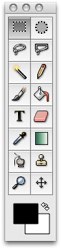 Seashore is a free painting program with a surprisingly strong array of tools. All the expected tools are there–paint brush (with lots of options), eraser, pencil, fill bucket, magic wand (for selecting colors) and marquee tools for selecting areas of your painting. There’s also a smudge tool for blending colors and a PhotoShop-like clone (rubber stamp) tool. You can control the transparency of your paintings and even paint with a large variety of included textures. For more advanced artists, you can add layers and manage red, green, and blue color channels.
Tools are easy to select and understand even for younger students. It’s a fine all-around painting program that should be on every K-12 Mac.
Image Tricks
 If your graphics needs run more toward the photo processing side, consider Image Tricks from BeLight Software. Image Tricks uses the Mac’s built-in Quartz imaging tools to create an easy and fun to use photo editing environment. You can open or paste in photos or scanned images from any source (a handy link to iPhoto is available) and alter them to your heart’s content. Apply filters, change colors, rotate and distort images, crop and resize photos, and save in jpg, png, tif, gif, and even pdf formats. The Masks feature lets you apply borders and frames to your images. All filters can be easily tweaked to create beautiful and unusual effects. The tools are easily accessible and encourage experimentation and exploration.
Mac users already have powerful photo editing tools in iPhoto and Preview. But Image Tricks has some new and exciting capabilities that expand the possibilities for working with photos. And–it’s tons of fun.
]]>